
Today I’ve been reading an article: An analysis of 5 monospaced fonts with coding ligatures 1.
It is interesting. It compares 5 monospace fonts in term of: Coding Ligatures, X-height, Legibility and extra features.
One of the font, Cascadia Code, catches my eyes.
And I’m going to share some tips on applying the extra features at Windows Terminal and my favorite Vim editor.
Cursive Style#
Here’s the quick recap and comparison.
| Font | Coding Ligatures | X-height | Legibility | Extra |
|---|---|---|---|---|
| Fira Code | Widest range | Regular | High | / |
| Commit Mono | Basic range | Regular | High | Smart kerning |
| Cascadia | Wide range | Regular | High | Cursive style |
| Victor Mono | Wide range | Slightly larger | OK | / |
| SF Mono | Widest range | Slightly smaller | Some concerns | / |
| Recursive | Basic range | Regular | Some concerns | Variable cursive style |
For more cursirve style settings, please refer to Adding free Cursive (Italic) font to visual studio code 2 and How to enable stylistic sets 3.
Windows Terminal#
In Microsoft Windows Terminal, font features are profile appearance settings for toggle specific features—such as programming ligatures, slashed zeros, or stylistic character sets.
We can configure these either through the graphical settings UI or directly in settings.json file.
Method A:
Open Windows Terminal and press
ctrl + ,to open Settings.Select a specific profile or choose Defaults.
Go to the Appearance tab and expand the Font section.
Scroll to Font Features to add or toggle OpenType tags (such as
ss01orcalt).
Method B:
Open Settings and click Open JSON file (or press
ctrl + shift + ,)Inside profile’s
"font"object, add a"features"dictionary mapping each 4-character OpenType tag to1(enabled) or0(disabled):
"profiles": {
  "defaults": {
     "font": {
        "face": "Cascadia Code",
        "size": 12,
        "features": {
           "ss01": 1,  // Enables cursive italics in Cascadia Code
           "zero": 1,  // Enables slashed zero (if supported by the font)
           "calt": 0   // Disables contextual alternates / programming ligatures
        }
     }
  }
}
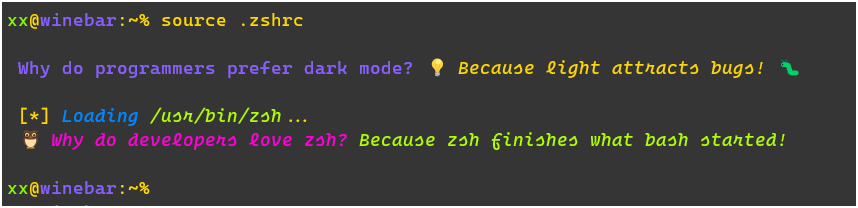
Below is the screenshot showing cursive within a Terminal login session.
Common OpenType Features Tags#
| Feature Tag | Name | Common Effect in Terminal Fonts |
|---|---|---|
calt | Contextual Alternates | Controls most multi-character programming ligatures (e.g., =>, !=, ===). Set to 0 to turn ligatures off. |
liga | Standard Ligatures | Controls standard character ligatures. Set to 0 alongside calt to ensure all ligatures are disabled. |
zero | Slashed Zero | Replaces the standard 0 glyph with a slashed or dotted zero for better distinction from O. |
ss01 – ss20 | Stylistic Sets 1–20 | Activates alternate character designs. For example, in Cascadia Code, ss01 turns standard italics into cursive script. |
cv01 – cv99 | Character Variants | Swaps individual characters (like a single-story a or g, or a tailed l) in fonts like JetBrains Mono or Fira Code. |
VIM Editor#
Here’s the steps to customize vim to display all comments in italics.
- Add the highlight rule to
.vimrc. Add the following line aftercolorschemedeclaration.
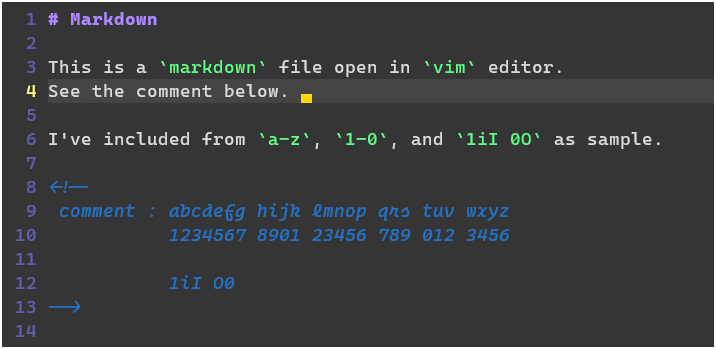
highlight Comment cterm=italic gui=italicBelow is the screenshot showing cursive within a vim editor.
Links#
- An analysis of 5 monospaced fonts with coding ligatures
- GitHub: Cascadia Code
- Microsoft: Windows Terminal Profile Appearance